
Standalone
Configure Claude Code on one workstation with a local YAML file, and send model requests through agentgateway without a fleet controller.
Use this quickstart to configure Claude Code with a local YAML file. You can inspect the configuration in the desktop app and send a model request through agentgateway. You do not need a fleet controller.
The example runs Dex and agentgateway in Docker. Use the test account in Dex to sign in. The local agentdesktop daemon supplies gateway credentials to Claude Code. The gateway forwards authenticated model requests to Anthropic.
Before you begin
Run these commands from your agentdesktop repository root on macOS or Linux. For setup, see Build and install.
With Docker running, verify your tools and example files.
command -v agentdesktop
command -v claude
docker compose version
docker info > /dev/null && echo "Docker is running"
test -f examples/standalone/config.yaml \
  && test -f examples/standalone/compose.yaml \
  && echo "Standalone example files found"
Set your Anthropic API key, replacing
sk-ant-...with your key. Keep this terminal open for Docker Compose.export ANTHROPIC_API_KEY='sk-ant-...'Copy the example configuration. It enables Claude Code and leaves the optional Pi and Claude Desktop blocks commented out. Pi requires user mode; Claude Desktop requires system mode.
cp examples/standalone/config.yaml /tmp/agentdesktop-standalone.yaml
Step 1: Start the example services
The local Dex service handles sign-in. The gateway uses that identity to authenticate model requests.
Start Dex and agentgateway in the terminal where you set the API key. Dex uses
127.0.0.1:5557, and the gateway uses127.0.0.1:4001.docker compose -f examples/standalone/compose.yaml up -dExample output on the first run, after any image downloads:
✔ Network standalone_default           Created
✔ Container standalone-dex-1           Started
✔ Container standalone-agentgateway-1  Started
Wait for both services to respond before starting the daemon. The gateway’s
HEAD /check tests connectivity. The Claude Code test verifies authenticated requests.curl --fail --silent --show-error \ --retry 10 --retry-all-errors --retry-delay 1 \ http://127.0.0.1:5557/dex/.well-known/openid-configuration \ > /dev/null && echo "Dex is ready" curl --fail --head --silent --show-error \ --retry 10 --retry-all-errors --retry-delay 1 \ http://127.0.0.1:4001/ \ > /dev/null && echo "Agentgateway is ready"Expected output once both are ready:
Dex is ready
Agentgateway is ready
Step 2: Preview the configuration
Use a dry run to inspect the proposed changes without writing files.
Preview the Claude Code settings.
agentdesktop daemon \
  --config /tmp/agentdesktop-standalone.yaml \
  --user \
  --dry-run
Example output on macOS (paths and change counts vary):
Dry run — no files will be changed

UPDATE  Claude Code settings
        /Users/<user>/.claude/settings.json
--- current
+++ proposed
@@ ... @@
 {
+  "apiKeyHelper": "'/Users/<user>/.cargo/bin/agentdesktop' '--socket' '/Users/<user>/.local/state/agentdesktop/agentdesktop.sock' 'credential' '--client-id' 'claude-code'",
+  "companyAnnouncements": [
+    "Using the local Agentgateway through Agentdesktop"
+  ],
+  "env": {
+    "ANTHROPIC_BASE_URL": "http://127.0.0.1:4001/",
+    "CLAUDE_CODE_API_KEY_HELPER_TTL_MS": "60000"
+  },
 ...

Summary: 1 change, 6 unchanged
Review the proposed settings and resolve any conflicts. When the daemon starts, these values merge into
~/.claude/settings.jsonwithout changing unrelated settings.Setting Purpose ANTHROPIC_BASE_URLSets the local gateway address for model requests. apiKeyHelperGets a credential from the daemon. companyAnnouncementsSets the message in the Claude Code startup banner.
Step 3: Run the daemon and sign in
The daemon needs your identity to supply gateway credentials. The example uses your local Dex service for sign-in.
Start the daemon without
--dry-runand leave the daemon running in this terminal.agentdesktop daemon \ --config /tmp/agentdesktop-standalone.yaml \ --userOn the Connect Agentdesktop page, click Continue to sign in under Organization sign-in. The daemon opens this page in your browser and prints its URL after
Open this URL to connect Agentdesktop:. If you are already signed in, the page does not open. Continue to step 5.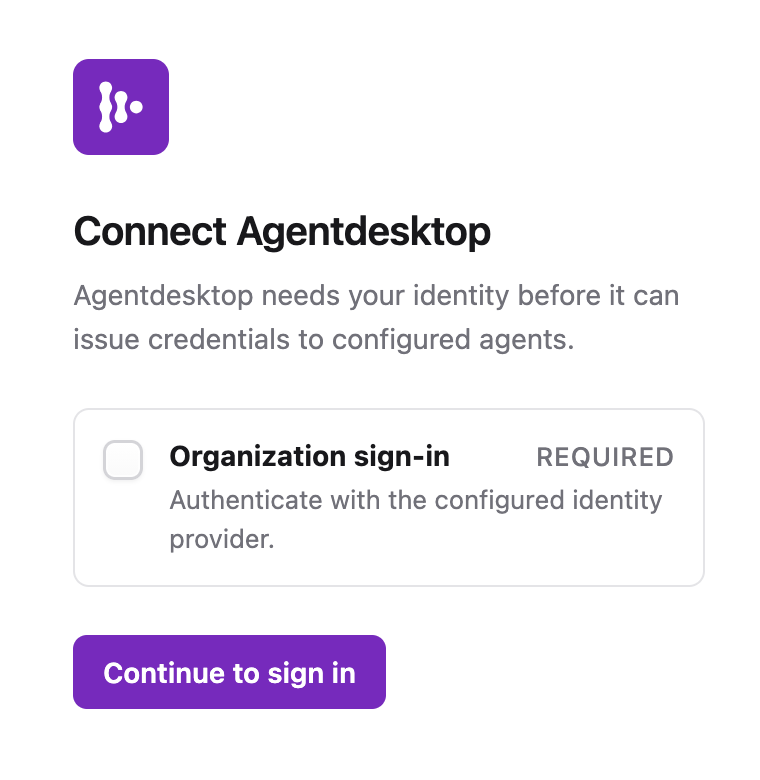
Start the sign-in flow for your local workstation. Sign in with the example Dex account.
- Email:
admin@example.com - Password:
password
- Email:
When Agentdesktop connected appears, close the browser tab. Keep the daemon running in your terminal.
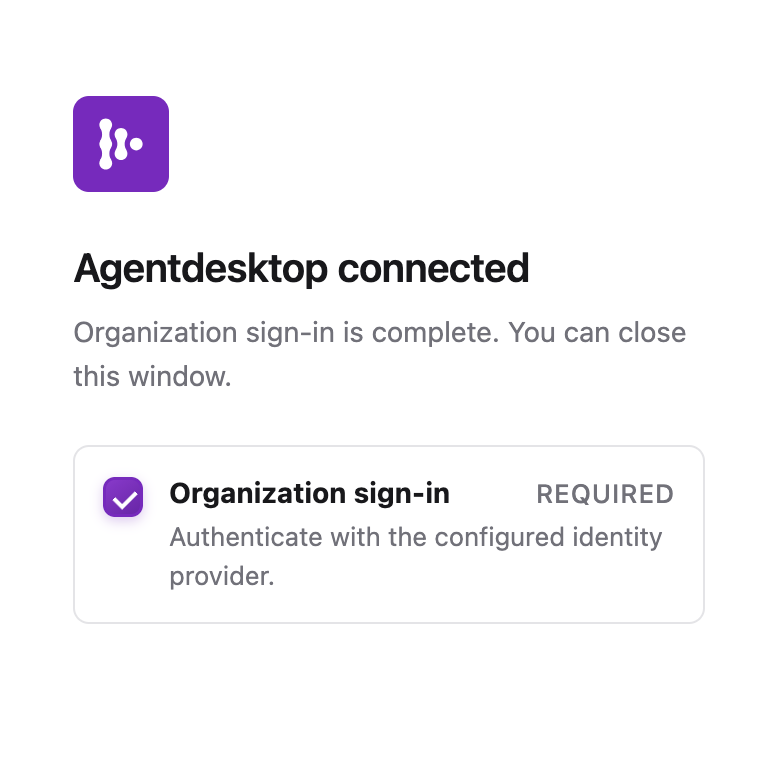
After sign-in, you can close the browser tab. In another terminal, verify that the daemon responds.
agentdesktop statusExpected output:
okList the discovered developer tools. The results can include Claude Desktop. This quickstart configures only Claude Code.
agentdesktop discoverExample output on macOS (tools, versions, and paths vary):
claude-code 2.1.283 /Users/<user>/.local/bin/claude claude-desktop 1.25927.0 /Applications/Claude.app/Contents/MacOS/Claude codex unknown version /opt/homebrew/bin/codex vscode 1.131.0 /opt/homebrew/bin/code
Step 4: Open the agentdesktop app
Use the app to inspect the daemon, large language model (LLM) gateway, and discovered tools.
With the daemon still running, open the desktop app in another terminal.
agentdesktopOn Status, verify the connection status. The number of discovered tools depends on your workstation.
- Local daemon: Running.
- LLM gateway: Configured.
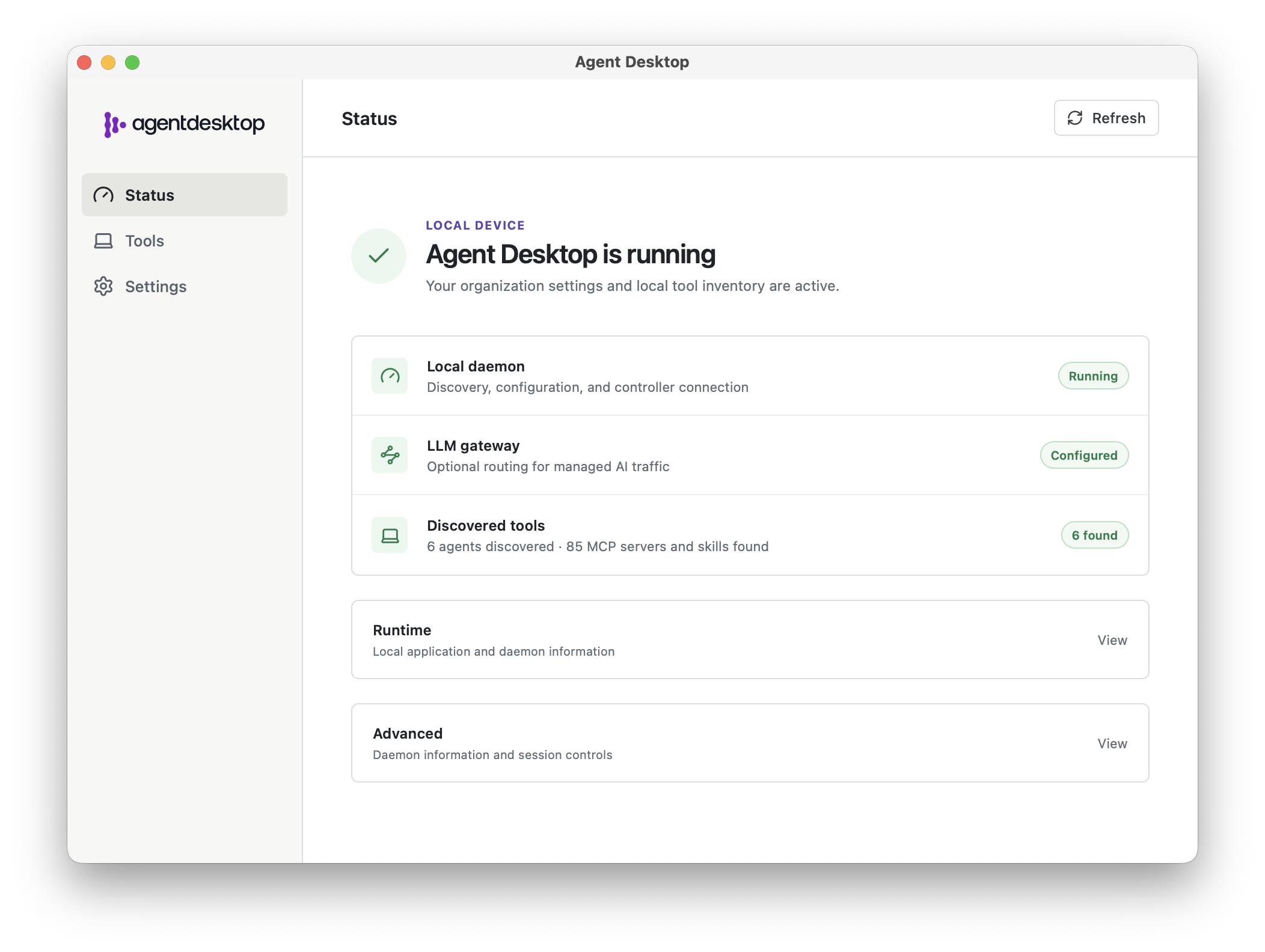
The Status page summarizes the local daemon, gateway configuration, and tool inventory. Expand Runtime with the View button. Expect Mode to show Standalone and the desktop and daemon versions to match.
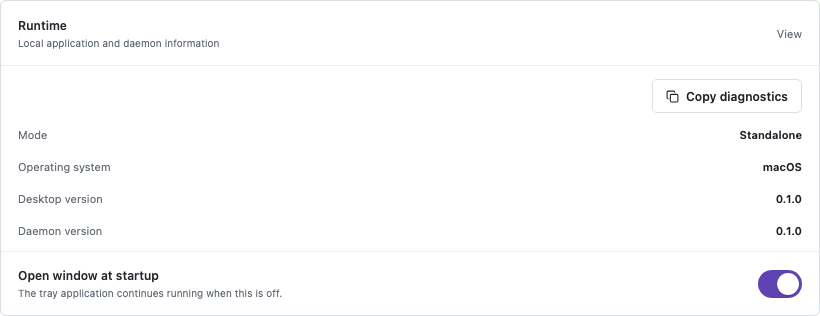
The Runtime panel shows the local standalone configuration. Open Tools to inspect developer tools, Model Context Protocol (MCP) servers, skills, and local models. The
agentdesktop discovercommand reports the same inventory.
Step 5: Use Claude Code through agentgateway
The gateway container keeps the Anthropic API key from your Compose terminal. In a separate terminal, use the daemon’s credential helper for Claude Code.
Clear direct Anthropic credentials from the new terminal.
unset ANTHROPIC_API_KEY ANTHROPIC_AUTH_TOKENStart Claude Code and look for the announcement from your YAML configuration in the startup banner.
claudeExample output:
Claude Code v2.1.283 Sonnet 5 with high effort · API Usage Billing ▎ Using the local Agentgateway through AgentdesktopIn Claude Code, run
/statusto verify the gateway settings. See the gateway verification guidance for details.- Anthropic base URL:
http://127.0.0.1:4001/. - Credential source:
apiKeyHelper.
- Anthropic base URL:
Send a short prompt, such as
Reply with hello.A successful response confirms the request path through the gateway to Anthropic.
Optional: Manage Pi
The standalone daemon in this walkthrough already runs in user mode, which Pi
requires. Install Pi separately, then add this block under the existing
programs key in /tmp/agentdesktop-standalone.yaml. Choose a model ID served
by your gateway:
programs:
pi:
useLlmGateway: true
model: claude-sonnet-4-5
api: anthropic-messages
Stop the daemon with Ctrl-C and restart it with the updated configuration:
agentdesktop daemon \
  --config /tmp/agentdesktop-standalone.yaml \
  --user
The API dialect defaults to anthropic-messages; set it when your gateway uses
another Pi-supported API. Agentdesktop adds the gateway provider and selects the
configured model while preserving other providers. Pi MCP discovery follows
saved project-trust settings, and the Tools view includes its discovered MCP
servers and skills. The cleanup below also removes Pi’s managed configuration.
Claude Desktop managed settings require system mode; this user-mode walkthrough does not apply them. See Gateway and subscription authentication for Claude Desktop’s system-mode configuration and platform-specific behavior.
Cleanup
Deleting files in /tmp does not restore Claude Code settings. Use an empty configuration with --user to undo the quickstart changes.
Quit Claude Code and the agentdesktop app. Stop the daemon with Ctrl+C so it cannot reapply settings during cleanup.
Preview cleanup with an empty configuration. The preview shows how cleanup restores previous settings and preserves unrelated preferences. If the quickstart created
~/.claude/settings.jsonand no other settings remain, cleanup removes the file.Cleanup uses the merge history in
~/.claude/.settings.json.agentdesktopto restore previous values. If you deleted that file, cleanup leaves the quickstart settings in place. Remove the quickstart settings from~/.claude/settings.jsonmanually, and keep your personal settings.printf '{}\n' > /tmp/agentdesktop-cleanup.yaml agentdesktop daemon \ --config /tmp/agentdesktop-cleanup.yaml \ --user \ --dry-runResolve any
CONFLICTin the preview, then apply cleanup.agentdesktop daemon \ --config /tmp/agentdesktop-cleanup.yaml \ --user \ --onceExpected output:
Reconciliation complete.From the repository root, stop the containers and remove the temporary files.
docker compose -f examples/standalone/compose.yaml down
rm -f /tmp/agentdesktop-standalone.yaml /tmp/agentdesktop-cleanup.yaml
Example Compose output:
[+] Running 3/3
✔ Container standalone-agentgateway-1  Removed
✔ Container standalone-dex-1           Removed
✔ Network standalone_default           Removed
Clear the example’s environment variables and restart Claude Code. Sign in with
/login, or set your usual API key.unset ANTHROPIC_BASE_URL ANTHROPIC_API_KEY ANTHROPIC_AUTH_TOKEN \ CLAUDE_CODE_API_KEY_HELPER_TTL_MS claudeRun
/statusto confirm that the local gateway URL and agentdesktop credential helper are gone. The startup banner no longer shows the gateway announcement. If you also ran the controller-managed quickstart, complete the system-mode cleanup.
Next steps
- Try the controller-managed quickstart to enroll your workstation and manage its configuration through a fleet controller.
- To configure Claude Desktop, follow the Claude Desktop example. That example requires system mode.
- To change either interface, see Develop the web interfaces.
- For a production deployment, use your own OpenID Connect (OIDC) client, trusted HTTPS endpoints, gateway policy, and secret management. See Production deployment.
- To route GitHub Copilot CLI and VS Code Copilot Chat through the daemon’s local proxy, see the Copilot example.