Controller-managed
Enroll a workstation with a local controller from a source build, and configure Claude Code to send model requests through agentgateway.
Use this quickstart to enroll your workstation with an agentdesktop controller. The local daemon receives tool configuration from the controller. You can inspect the device in the controller interface and send a model request through agentgateway.
All components run on your workstation for this quickstart. In production, the controller and inference gateway normally run on separate infrastructure. See Production deployment or Deploy on Google Cloud for deployment guidance.
What you will run
| Component | Address | Purpose |
|---|---|---|
| Dex | 127.0.0.1:5556 | Local OpenID Connect (OIDC) provider for enrollment |
| Controller fleet API | 127.0.0.1:8443 | Device enrollment, configuration, and telemetry |
| Controller interface | 127.0.0.1:8080 | Fleet inventory and configuration status |
| agentgateway | 127.0.0.1:4000 | Authenticated model traffic |
| Device daemon | Local socket | Tool discovery, configuration, and credentials |
Before you begin
- Docker with Compose. On Docker Desktop, use version 4.34 or later and enable host networking.
- Bash, OpenSSL, and curl.
- Claude Code and an Anthropic API key.
- The agentdesktop repository and both executables on
PATH. See Build and install.
Run commands from the repository root on macOS or Linux. Use separate terminals for the controller and daemon.
Step 1: Generate development keys
The controller, device enrollment, and gateway credentials use local keys. The example script creates development-only keys in /tmp/agentdesktop-keys.
Generate the controller certificate, device CA, and gateway signing key for local development. The script stops if the key files already exist.
./examples/claude/create-keys.shExample output, after OpenSSL’s key-generation progress:
Certificate request self-signature ok
subject=CN=localhost
Generated Agentdesktop development keys in /tmp/agentdesktop-keys
Step 2: Start Dex
Use the local Dex service to sign in during device enrollment.
Start the Dex container.
docker compose -f examples/claude/compose.yaml up -d dexExample output on the first run, after any image downloads:
[+] Running 2/2
✔ Network claude_default  Created
✔ Container claude-dex-1  Started
Verify that the Dex OIDC metadata is available.
curl --fail --silent --show-error \
  --retry 10 --retry-all-errors --retry-delay 1 \
  http://127.0.0.1:5556/dex/.well-known/openid-configuration \
  > /dev/null && echo "Dex is ready"
Expected output once Dex responds:
Dex is ready
Step 3: Start the controller
The controller manages device enrollment and tool configuration. The controller executable also includes the fleet management interface.
In a new terminal, start the controller and leave the controller running. Devices connect through
https://127.0.0.1:8443. The controller interface is available at http://127.0.0.1:8080.agentdesktop-controller --config examples/claude/controller.yamlIn another terminal, verify the controller’s admin API.
curl --fail http://127.0.0.1:8080/api/v1/settingsExpected output:
{"fleet_listen":"0.0.0.0:8443","admin_listen":"127.0.0.1:8080","oidc_enabled":true,"tls_enabled":true,"gateway_jwt_enabled":true}Verify that the public signing keys are available as a JSON Web Key Set (JWKS). The gateway needs these keys to validate credentials.
curl --fail --silent --show-error \
  http://127.0.0.1:8080/.well-known/jwks.json \
  > /dev/null && echo "Controller JWKS is ready"
Expected output:
Controller JWKS is ready
Step 4: Start agentgateway
The gateway validates the JSON Web Tokens (JWTs) that the daemon supplies to Claude Code, and forwards model requests to Anthropic. The example Compose file sets network_mode: host so that the gateway can reach the controller’s public signing keys at http://127.0.0.1:8080/.well-known/jwks.json. On Docker Desktop, complete the host networking setup in Before you begin. Keep the controller running.
Set your Anthropic API key in the terminal for Compose. Replace
sk-ant-...with your key.export ANTHROPIC_API_KEY='sk-ant-...'Start the gateway.
docker compose -f examples/claude/compose.yaml up -d agentgatewayExample output:
[+] Running 1/1
✔ Container claude-agentgateway-1  Started
Check that the gateway container stays
Up. The ComposeStartedmessage confirms only that the container launched.docker compose -f examples/claude/compose.yaml ps --all agentgatewayVerify that the gateway accepts connections through the
HEAD /route in the example’sagentgateway.yaml.curl --fail --head --silent --show-error \ --retry 10 --retry-all-errors --retry-delay 1 \ http://127.0.0.1:4000/ \ > /dev/null && echo "Agentgateway is ready"Expected output:
Agentgateway is ready
If the gateway exits with a JWKS error
The failed to load JWKS error can indicate that the gateway cannot reach the controller’s signing keys.
Inspect the stopped container.
docker compose -f examples/claude/compose.yaml ps --all agentgateway
docker compose -f examples/claude/compose.yaml logs --tail 50 agentgateway
Repeat the controller signing key check.
If the check succeeds on your workstation, enable host networking in Docker Desktop under Settings > Resources > Network. Click Apply & restart so that the container can reach the controller through
127.0.0.1.With the controller running, restart the gateway from the terminal where you set the API key.
docker compose -f examples/claude/compose.yaml up -d agentgatewayRepeat the gateway status and connection checks. This Docker Desktop fix needs no YAML changes.
Step 5: Start and enroll the device daemon
The daemon’s local configuration, examples/claude/agentdesktop.yaml, contains only the controller connection. The controller delivers the tool configuration from examples/claude/claude-code.yaml. That configuration includes Claude Desktop settings, which require system privileges, so run the daemon in system mode for this quickstart.
If another foreground agentdesktop daemon is running, stop that daemon with Ctrl+C in its terminal.
Start the device daemon and leave the daemon running in this terminal.
sudo "$(command -v agentdesktop)" daemon \
  --config examples/claude/agentdesktop.yaml
Sign in through the browser with the example Dex account. Enrollment returns a client certificate while the private device key stays on your workstation.
- Email:
admin@example.com - Password:
password
- Email:
Step 6: Verify the managed device
Use the command-line tools and controller interface to inspect the enrolled device. A model request from Claude Code tests the gateway connection.
In another terminal, check that the local daemon responds.
agentdesktop statusExpected output:
okPrint the daemon’s local startup configuration. The output shows only the controller connection. You inspect the controller-delivered tool configuration in the controller interface in a later step.
agentdesktop configExample output:
controller:
  address: https://127.0.0.1:8443
  caCertificatePath: /tmp/agentdesktop-keys/device-ca.pem
  heartbeatInterval: 1m
inventoryInterval: 15m
List the discovered developer tools.
agentdesktop discoverExample output on macOS (tools, versions, and paths vary):
claude-code     2.1.284   /Users/<user>/.local/bin/claude
claude-desktop  2.9939.4  /Applications/Claude.app/Contents/MacOS/Claude
codex           0.158.0   /Users/<user>/.local/bin/codex
opencode        1.14.30   /Users/<user>/.opencode/bin/opencode
vscode          1.136.1   /usr/local/bin/code
cursor          3.22.7    /usr/local/bin/cursor
Open Devices in the controller interface to inspect connection status, discovered tools, and configuration results. With current daemon and controller versions, open a device to see the outcome for each managed program: applied, unchanged, removed, conflict, inactive, blocked, or failed. A program result describes configuration reconciliation, not whether a model request succeeded.
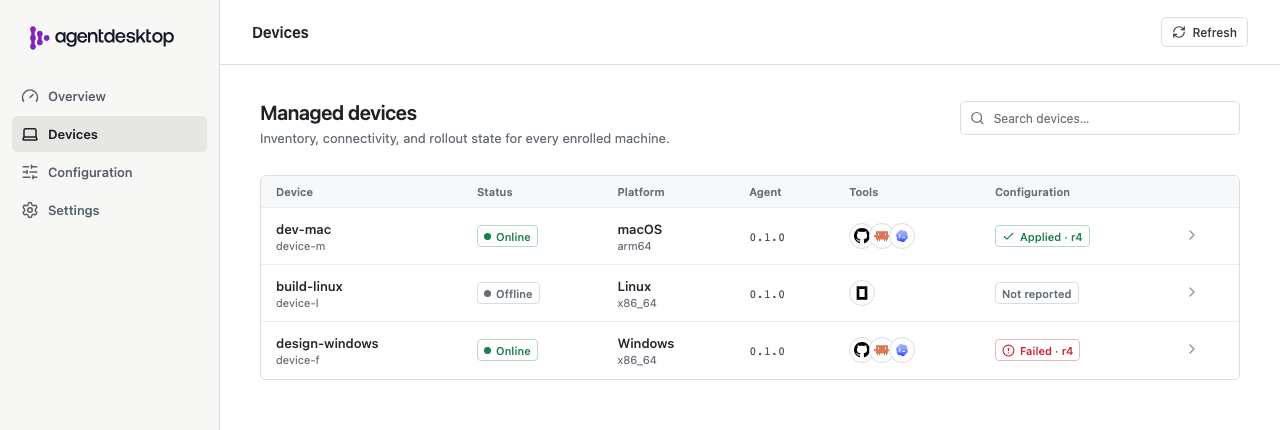
The Devices page shows connection and configuration status across the fleet. Open your enrolled device to inspect its identity, applied configuration revision, recent activity, and discovered tools.
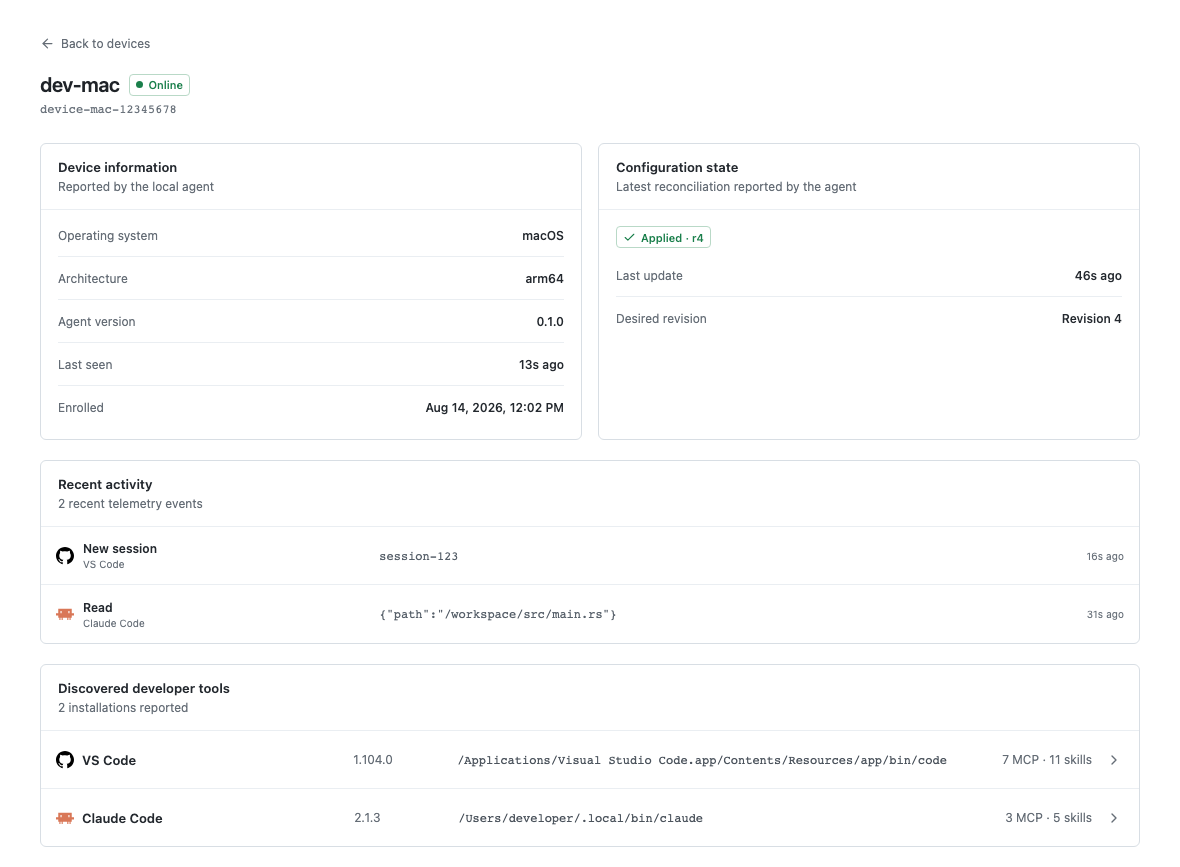
The device details show the daemon's latest report and configuration result. Optional: open the desktop app to inspect the local daemon.
agentdesktopIn a separate terminal, clear direct Anthropic credentials.
unset ANTHROPIC_API_KEY ANTHROPIC_AUTH_TOKENStart Claude Code and look for
Managed by Agentdesktopin the startup banner. The daemon supplies a short-lived gateway JWT.claudeIn Claude Code, run
/statusto verify the gateway settings.- Anthropic base URL:
http://localhost:4000/. - Credential source:
apiKeyHelper.
- Anthropic base URL:
Send a short prompt, such as
Reply with hello.A successful response confirms the request path through the gateway to Anthropic.
Cleanup
Stopping the containers or deleting files in /tmp does not restore tool settings. Cleanup also leaves the controller database and keys under /tmp, and the daemon’s identity, stored credentials, and cached controller configuration in /var/lib/agentdesktop. This quickstart writes Claude Code settings to a system directory:
Secret storage is platform-specific: Linux uses owner-only files, macOS uses Keychain, and Windows stores encrypted secret files in its private state directory with encryption keys in Credential Manager.
| Operating system | Claude Code managed file |
|---|---|
| macOS | /Library/Application Support/ClaudeCode/managed-settings.d/50-agentdesktop.json |
| Linux | /etc/claude-code/managed-settings.d/50-agentdesktop.json |
Quit Claude Code, Claude Desktop, and the agentdesktop app. Stop the daemon and controller with Ctrl+C so the daemon cannot reapply settings during cleanup.
Preview cleanup with an empty configuration in system mode. Cleanup removes agentdesktop-owned settings, hooks, and credential helpers. Personal settings and files without ownership markers remain unchanged.
printf '{}\n' > /tmp/agentdesktop-cleanup.yaml
sudo "$(command -v agentdesktop)" daemon \
  --config /tmp/agentdesktop-cleanup.yaml \
  --dry-run
Resolve any
CONFLICTin the preview, then apply cleanup. If you also ran the standalone quickstart, follow with the user-mode cleanup to restore~/.claude/settings.json.sudo "$(command -v agentdesktop)" daemon \ --config /tmp/agentdesktop-cleanup.yaml \ --onceExpected output:
Reconciliation complete.Stop the containers and remove the temporary cleanup file.
docker compose -f examples/claude/compose.yaml down
rm -f /tmp/agentdesktop-cleanup.yaml
Example output:
[+] Running 3/3
✔ Container claude-agentgateway-1  Removed
✔ Container claude-dex-1           Removed
✔ Network claude_default           Removed
Clear the example’s environment variables and restart Claude Code. Sign in with
/login, or set your usual API key.unset ANTHROPIC_BASE_URL ANTHROPIC_API_KEY ANTHROPIC_AUTH_TOKEN \ CLAUDE_CODE_API_KEY_HELPER_TTL_MS claudeRun
/statusto confirm that the local gateway URL and agentdesktop credential helper are gone. The startup banner no longer showsManaged by Agentdesktop. If these settings remain, check for configuration from the standalone quickstart.
Next steps
For a cluster deployment, follow the Kubernetes controller example. The example includes the controller Helm chart, development Dex and PostgreSQL dependencies, and a separate agentgateway configuration.
For a runnable GitHub Copilot CLI and VS Code Copilot Chat setup, including gateway routing and proxy-unavailable behavior, see the Copilot example.