Just about every engineer in 2026 starts the day something like this:
Crack open the laptop > open a terminal or IDE > run an Agent
And this exact workflow is precisely why ensuring that the workstation is secure, governed, and performing as expected is so important. If you Google how many Agents run on laptops/desktops vs servers, you’ll see the split is about 75-85% on laptops/desktops.
In this blog post, you’ll learn about a new platform that can help you ensure security and reliability for all of those Agents in a “why” and “how” fashion.
Prerequisites
To follow along from a hands-on perspective, you will need:
- Claude Code installed (any Agent Harness works, but this lab uses Claude Code as an example)
- On macOS: Xcode command-line tools if missing (
xcode-select --install) - Docker Desktop for Dex (OIDC provider) + agentgateway (LLM and MCP Gateway)
If you don’t have all of these prereqs, that’s totally fine! You can still follow along from a learning/theoretical perspective and implement when you’re able.
Why Is Desktop Discoverability Important?
Agents are a desktop application. From when ChatGPT launched in 2022 to now with Agent Harnesses like Claude Code and opencode, everyone from engineers to family and friends to everyone across the organization has been running AI Agents in some way, shape, or form. For example, “technically” the ChatGPT web interface acts as both a chatbot and an AI Agent.
Thinking about how many people are now using Agents even outside of engineering/technical teams, it’s becoming increasingly important, day to day, to understand what those Agents are doing and how they’re performing.
Enter agentdesktop.
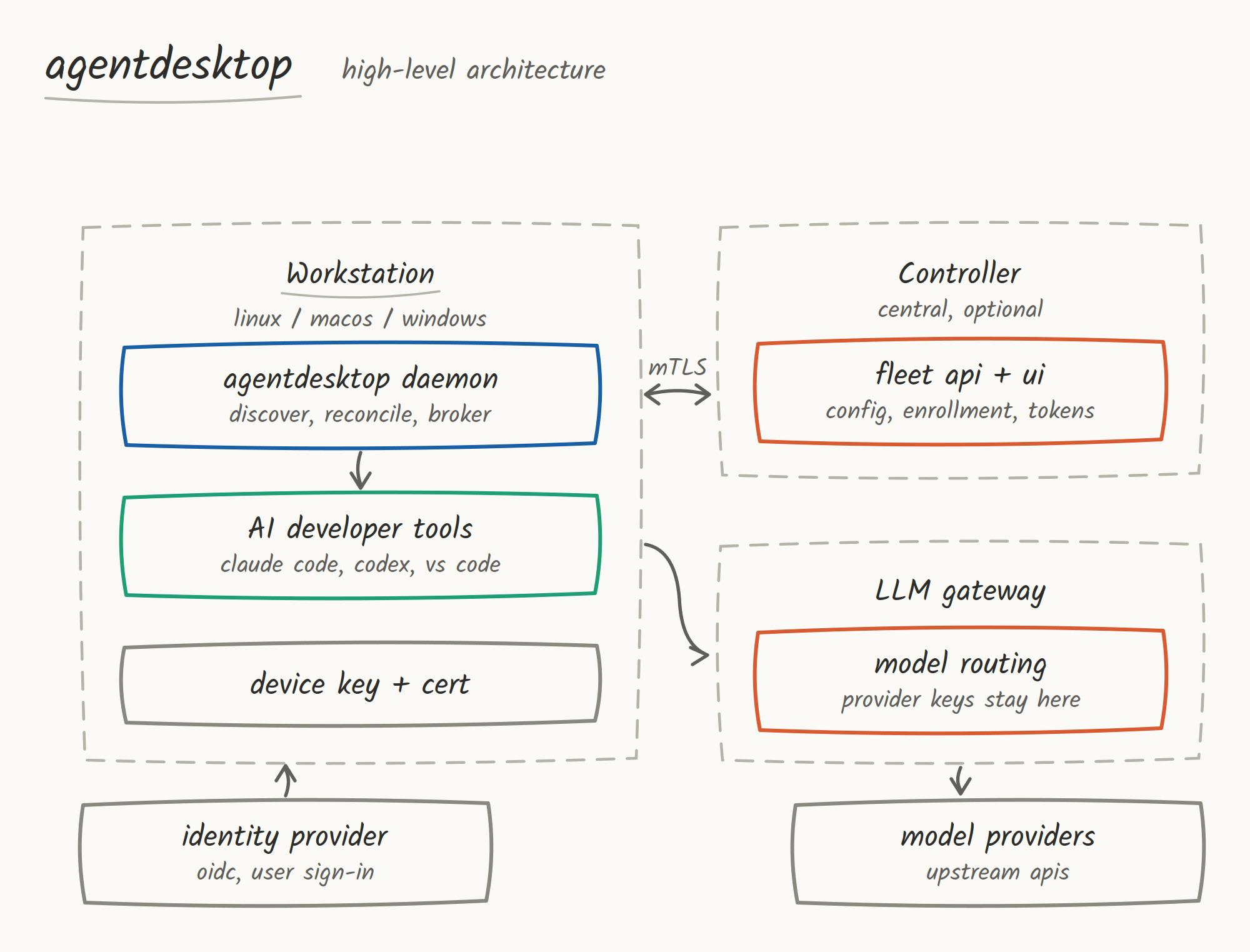
Agentdesktop gives you visibility into what’s happening from an agentic perspective on the laptops/desktops/servers/workstations it’s running on. Think MDM for Agents. There’s a daemon installed on the machine and it collects information about what Agents are running and allows you to see the Agents themselves along with the tools they’re using. The daemon then reports back to the agentdesktop Controller/Control Plane in a secure fashion by routing the traffic through agentgateway.
Sidenote: it’s important to understand that having this level of governance and security on a workstation for Agents isn’t meant to be “big brother”. The industry is running, building, and deploying Agents and Agent Harnesses at an exponential rate to the point where it’s tough to keep track of what those Agents are even doing and how they’re used.
What Agentdesktop Modes Exist?
There are two modes for agentdesktop:
- Standalone
- Controller-Managed
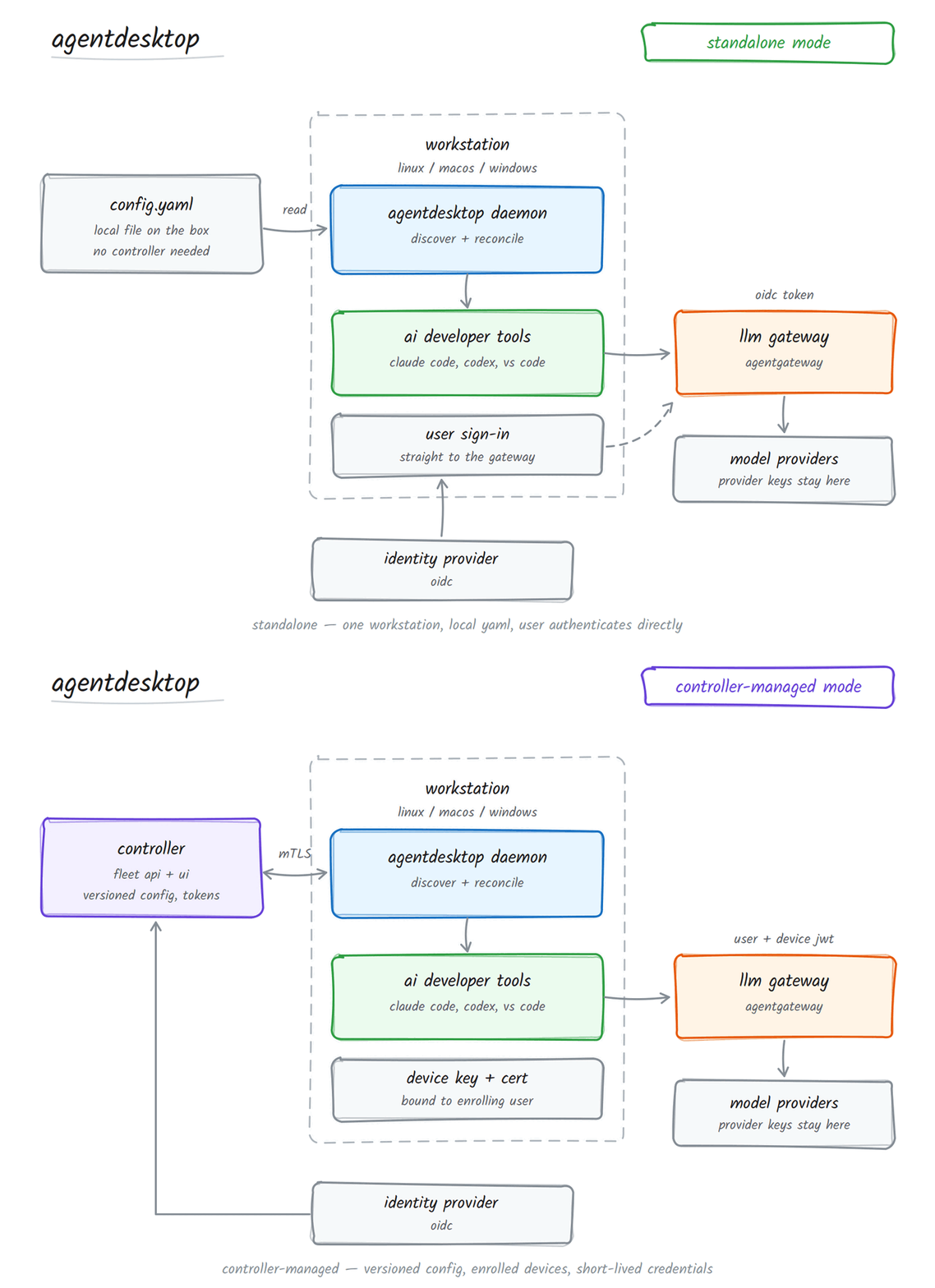
Standalone gives you governance on a single machine. You can apply configs (e.g., what Agents should be governed) and authenticate directly to agentgateway.
llmGateway:
  url: http://127.0.0.1:4001
  authentication:
    type: oidc
    issuer: http://127.0.0.1:5557/dex
    clientId: agentdesktop-local
    scopes: [openid, email, offline_access]
    allowInsecure: true
programs:
  claudeCode:
    useLlmGateway: true
    companyAnnouncements: ["Using the local Agentgateway through Agentdesktop"]
With Controller-Managed, you get a full Control Plane to see the fleet of Agents deployed across the laptops/desktops that are enrolled in agentdesktop. It’s centralized management, distributed version configurations, policy, and visibility along with a management UI. You can push out those policies and configurations via your MDM software of choice.
In the upcoming sections, you will learn how to install, configure, and deploy agentdesktop.
Christian Posta put together an amazing how-to video on setting up the central fleet manager for agentdesktop, which you can find here.
Installation and Configuration
With the theory and understanding of the “why” behind agentdesktop, let’s start implementing it! You’ll start with installing the binary to use agentdesktop on the CLI and then move into implementing the controller, agentgateway, and enrolling a device.
Binary
To install the binary, there are two core steps:
- Pull down the agentdesktop repo.
- Build the artifact locally.
cd ~/YOUR-PATH/agentdesktop
corepack enable
make install
export PATH="$HOME/.cargo/bin:$PATH"
command -v agentdesktop
command -v agentdesktop-controller
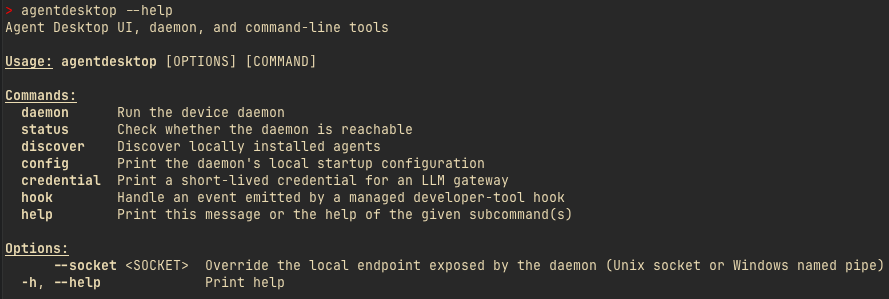
You can now see that the binary works as expected.
Keys and OIDC
Next, you’ll install openssl to generate keys and Dex for OIDC (it’s in the examples directory in agentdesktop, which gives you an easy way to test this out). Keys give the local controller TLS for the fleet API, a device CA to issue each laptop’s client cert at enroll, and an RSA key to sign the short-lived JWTs Claude Code presents to agentgateway. OIDC gives you the ability to enroll a device with a specific username/password instead of all and every device being able to enroll into agentdesktop.
- Install the openssl package.
brew install openssl@3
export PATH="$(brew --prefix openssl@3)/bin:$PATH"
openssl version   # expect OpenSSL 3.x, not LibreSSL
- Create the keys.
cd ~/gitrepos/agentdesktop
rm -rf /tmp/agentdesktop-keys
./examples/claude/create-keys.sh
- For Dex, you can use the example in the agentdesktop repo. It’ll deploy a Docker container and Service via Docker Compose to run your OIDC provider locally for testing purposes.
docker compose -f examples/claude/compose.yaml up -d dex
curl --fail --silent \
  --retry 10 --retry-all-errors --retry-delay 1 \
  http://127.0.0.1:5556/dex/.well-known/openid-configuration \
  > /dev/null && echo "Dex is ready"
With the keys created and your OIDC provider running, you can now configure the agentdesktop controller.
Controller
The Controller/Control Plane configuration is done programmatically via a YAML configuration where you specify:
- The agentgateway configuration for securely sending traffic.
- Telemetry for the Controller.
- What programs (harnesses/Agents) are discovered by agentdesktop.
- The OIDC provider used to enroll devices.
- Create the Controller configuration file.
cat > /tmp/agentdesktop-claude-code.yaml <<'EOF'
llmGateway:
  url: http://localhost:4000
  authentication:
    type: controllerJwt
    audience: "agentgateway"
    allowedClientIds: [claude-code]
telemetry:
  events:
  - session.new
  - tool.use
programs:
  claudeCode:
    companyAnnouncements: ["Managed by Agentdesktop"]
EOF

cat > /tmp/agentdesktop-controller.yaml <<'EOF'
fleetListen: 0.0.0.0:8443
allowInsecureDev: true
databaseUrl: sqlite:///tmp/agentdesktop-controller.db?mode=rwc
tls: /tmp/agentdesktop-keys
oidc:
  issuer: http://127.0.0.1:5556/dex
  clientId: local-public
daemonConfig:
  path: /tmp/agentdesktop-claude-code.yaml
gatewayJwt:
  privateKey: /tmp/agentdesktop-keys/gateway-jwt-key.pem
EOF
- Run the configuration that you saved.
agentdesktop-controller --config /tmp/agentdesktop-controller.yaml
You’ll see that the controller is now running and you can reach the UI.

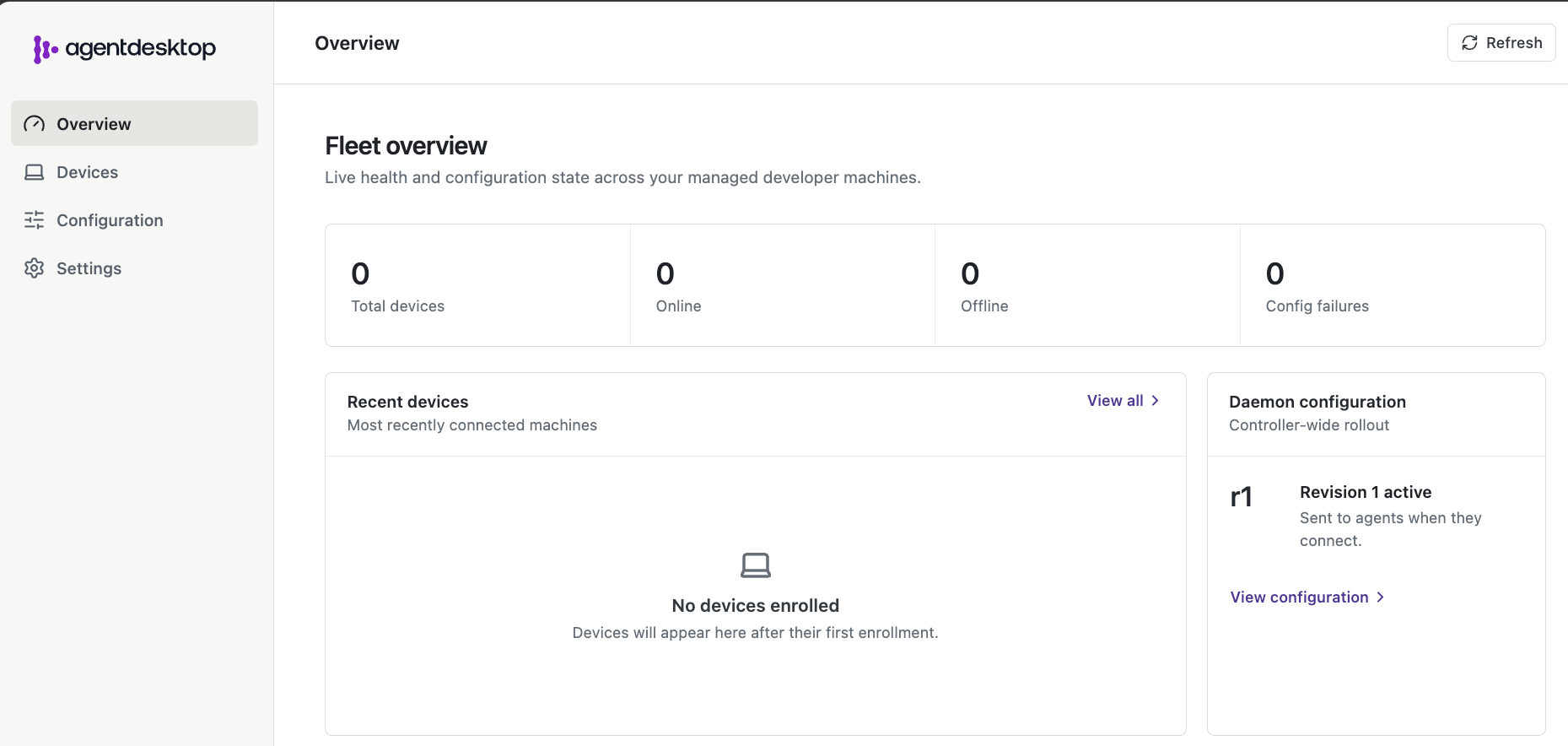
You’ll see that there aren’t any devices in the fleet. That’s normal as you haven’t enrolled any yet. You’ll learn how to do so in the upcoming Enrolling A Device & Testing section.
Agentgateway
With the agentdesktop controller up and operational, let’s ensure that the device we want to enroll goes through the proper gateway.
- Run the following to deploy and test the agentgateway configuration.
export ANTHROPIC_API_KEY=sk-ant-...
cd ~/gitrepos/agentdesktop
docker compose -f examples/claude/compose.yaml up -d agentgateway
docker compose -f examples/claude/compose.yaml ps agentgateway

curl --fail --head --silent http://127.0.0.1:4000/ \
  > /dev/null && echo "agentgateway is ready"
You may notice that you’re using the same Docker Compose file that you used to deploy Dex in the Keys and OIDC section. The difference is you’re using -d agentgateway, which calls the configurations for the agentgateway service. The agentgateway service is the LLM proxy for Claude Code.
  agentgateway:
    image: cr.agentgateway.dev/agentgateway:v1.4.1
    command: -f /etc/agentgateway/config.yaml
    network_mode: host
    environment:
      ANTHROPIC_API_KEY:
    volumes:
    - ./agentgateway.yaml:/etc/agentgateway/config.yaml:ro
How It Works: Enrollment is the daemon signing in to Dex and getting a device cert from the controller. After that, Claude Code on that laptop sends model traffic here. The daemon hands it a short-lived JWT; agentgateway checks that JWT against the controller’s JWKS, then calls Anthropic with its own API key.
Enrolling A Device & Testing
The final step is to enroll a device (laptop, desktop, server, etc.) with the following command:
agentdesktop daemon --user \
  --config ~/gitrepos/agentdesktop/examples/claude/agentdesktop.yaml
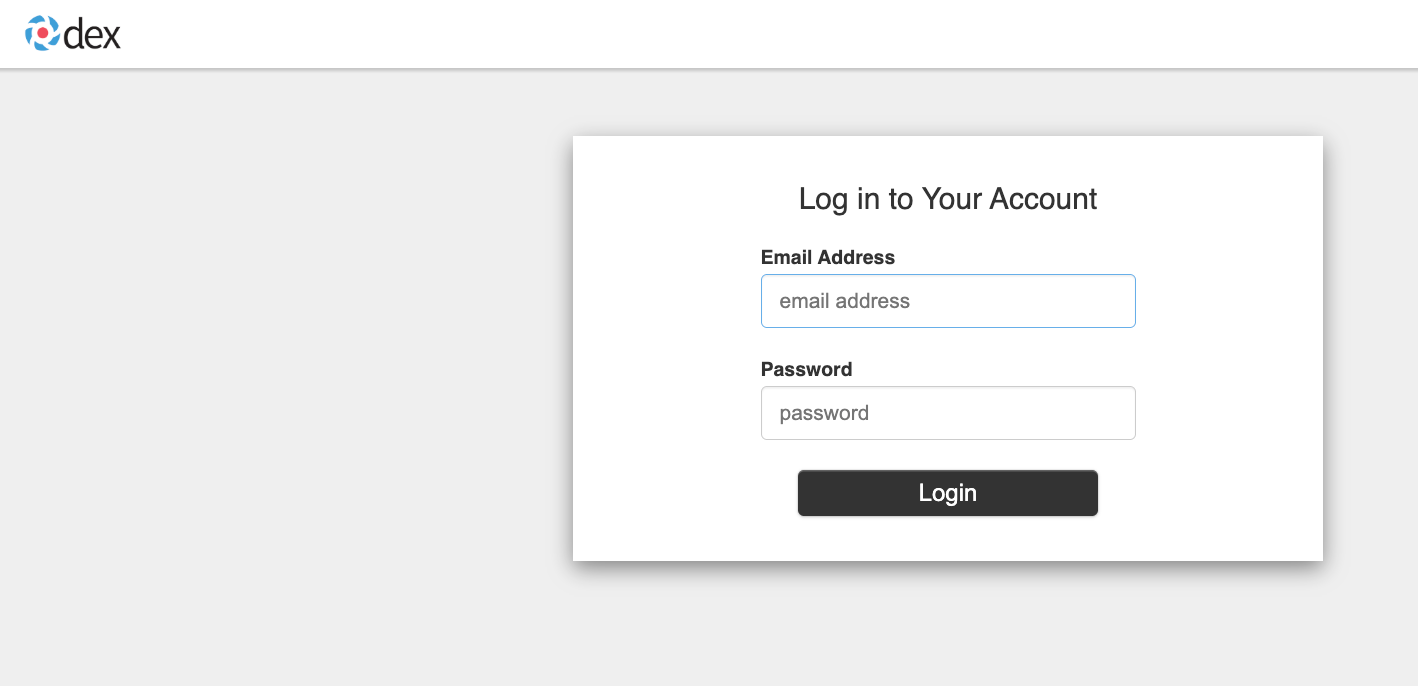
When you run the command above, you’ll get a pop-up to log into your OIDC provider. The default credentials (which come from when you deploy Dex) are:
- Email:
admin@example.com - Password:
password
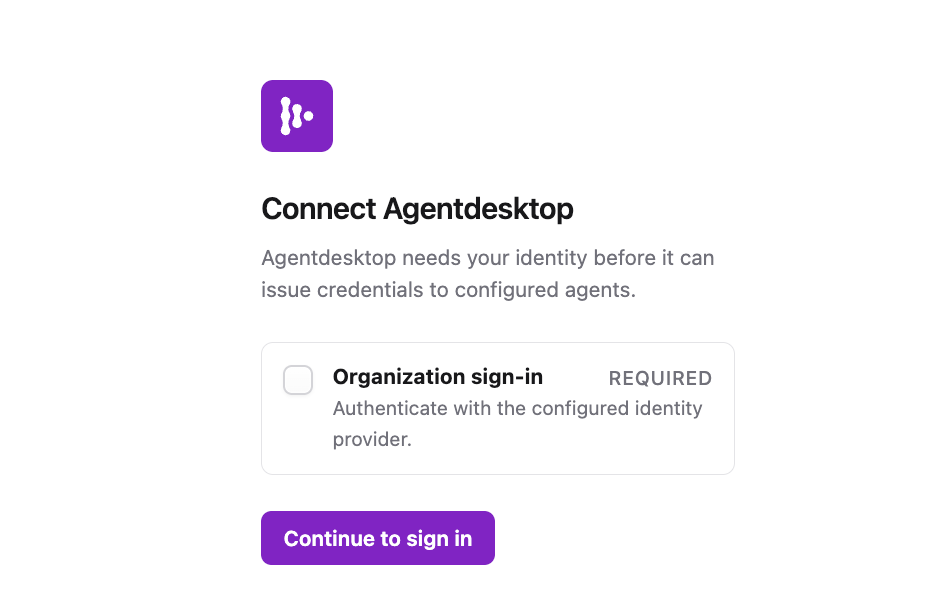
You’ll now see that the device is enrolled.
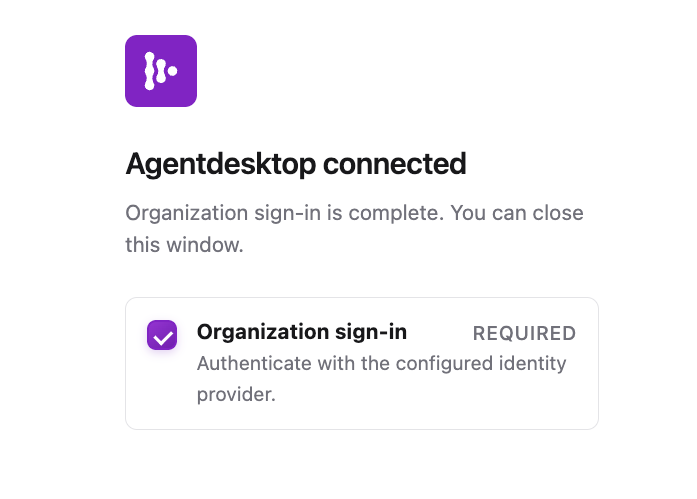
Log into the agentdesktop Controller and you’ll see that the device exists.
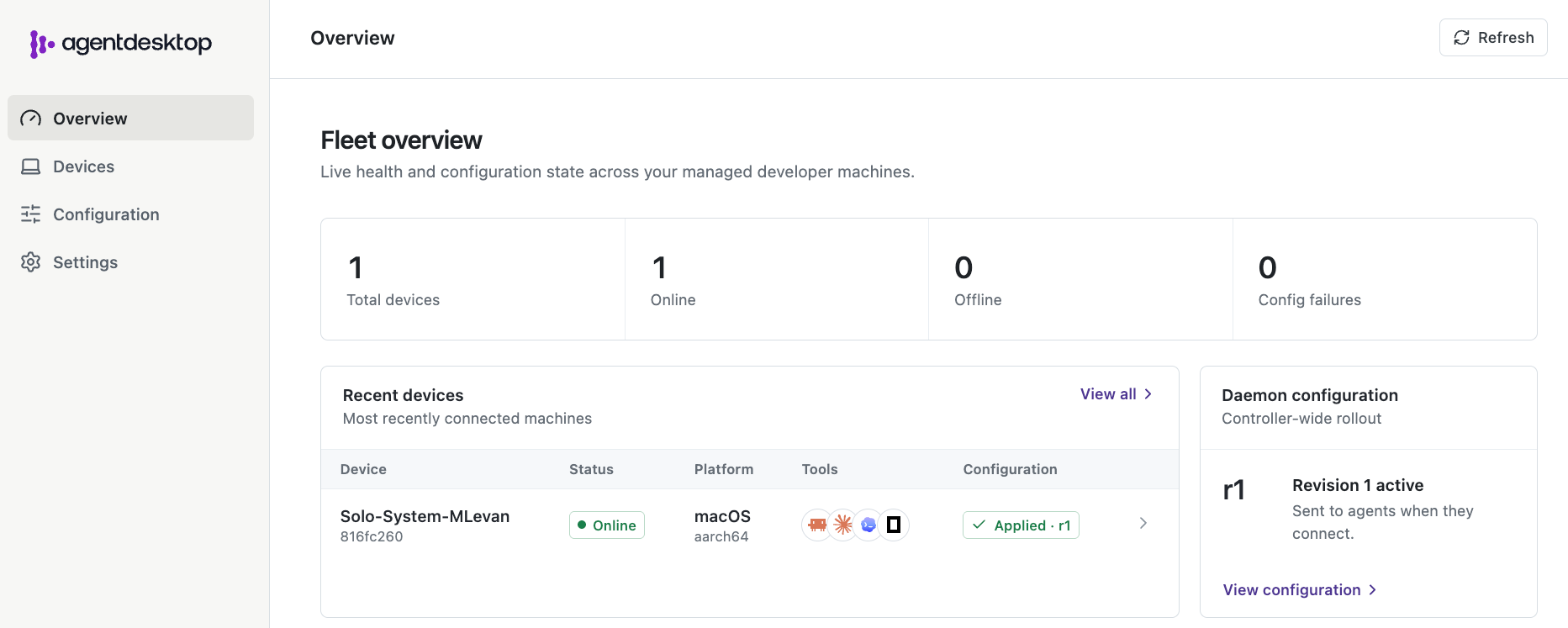
How It Works: The daemon creates a device key that never leaves the machine, submits a CSR after OIDC, and stores identity under ~/.local/state/agentdesktop. It then merges Claude Code settings into ~/.claude/settings.json. The socket used is either $XDG_RUNTIME_DIR/agentdesktop.sock or ~/.local/state/agentdesktop/agentdesktop.sock.
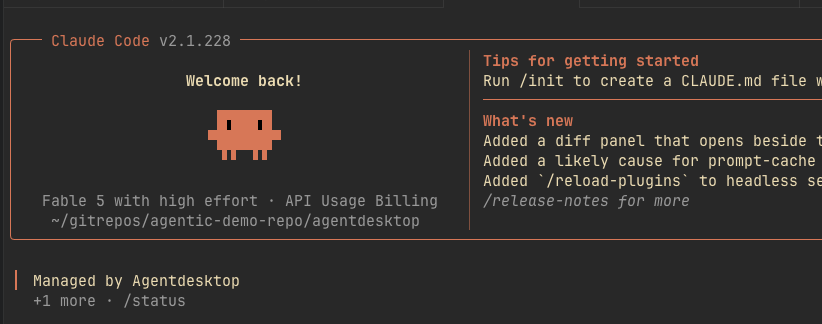
You can then test your enrolled device by opening Claude Code. You’ll see that as soon as you open Claude Code, it’ll say “Managed by Agentdesktop”.
Wrapping Up
Production is not just on servers for agentic workloads, but on the device that you’re most likely reading this blog post from. In fact, more than half of Agents that run in production today are running on said device. Because of that, we need the ability to ensure that the Agents and Agent Harnesses running locally can get the configurations, policies, and central governance that they need to perform as expected.
If you want to learn more about agentdesktop, you can check out the following:
- Visit agentdesktop.dev and join the Discord community
- Watch the recorded live stream
- Read Introducing agentdesktop
We’re also running a live how-to if you want to learn how to implement agentdesktop in real-time (watch this space for the date).